|
Graphics (Display) Tab
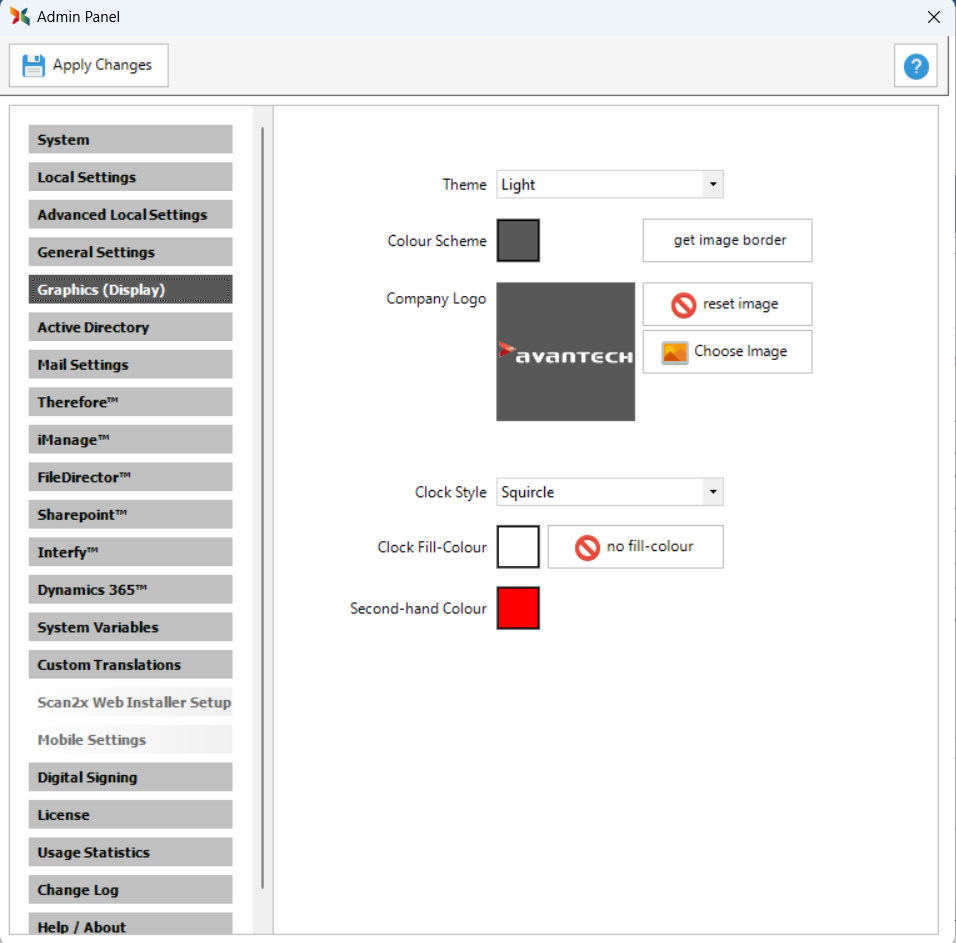
The Graphics (Display) tab contains the settings that control the appearance of the Scan2x screen, including the company logo that appears at the top left. Use these settings to match Scan2x to a customer’s corporate identity and colour scheme.
Theme and Colour Scheme
•Theme: Sets the theme of the Scan2x screen. Select the required theme from the list.
•Colour Scheme: Sets the colour scheme of the Scan2x screen. Click the colour box to select a colour.
•get image border: Sets the Colour Scheme to the colour found at the border of the current company logo image.
Company Logo
The Company Logo setting controls the logo that appears at the top left of the Scan2x screen. The current logo is shown in the preview box.
•Choose Image: Select an image file to use as the company logo.
•reset image: Resets the logo image.
Clock
•Clock Style: Sets the style of the clock. Select the required style from the list.
•Clock Fill-Colour: Sets the fill colour of the clock. Click the colour box to select a colour.
•no fill-colour: Sets the clock to have no fill colour.
•Second-hand Colour: Sets the colour of the clock’s second hand. Click the colour box to select a colour.
|

