|
Mail Settings Tab
The Mail Settings tab contains the settings Scan2x uses to connect to email services. The tab has three sub tabs: SMTP, Microsoft Graph and IMAP.
Scan2x generates emails in the following cases:
•Jobs are set with an output destination of “Scan to Email”
•When jobs are set to email a copy of a saved scan (see the Scan to Email tab)
•When a user requests a new login PIN number (see “Request New PIN” on the Authenticating with Scan2x in the User's Guide)
•Scan2x generates a queue notification (see the Local Settings tab for an explanation of queue notifications)
SMTP
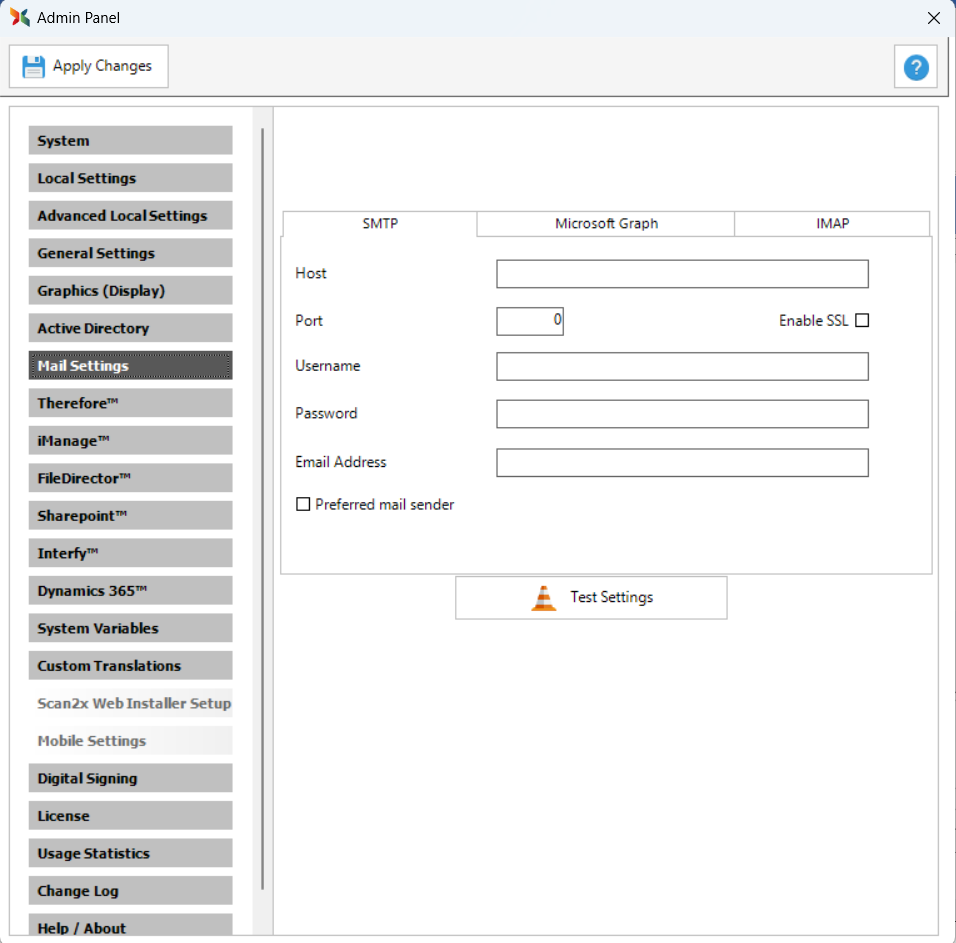
Use the SMTP tab to connect Scan2x to your SMTP server.
|
Field
|
Description
|
|
Host
|
The DNS name (e.g., smtp.gmail.com) or IP address of your SMTP server.
|
|
Port
|
The TCP/IP port that your STMP server is listening on. For more information, kindly see https://en.wikipedia.org/wiki/Simple_Mail_Transfer_Protocol.
|
|
Enable SSL
|
Select this checkbox if your SMTP server is configured to use Secure Sockets Layer (SSL).
|
|
Username
|
The username required for Scan2x to log in to your SMTP server.
|
|
Password
|
The password required for Scan2x to log in to your SMTP server.
|
|
Email Address
|
The email address required to appear in the “From” field of the email header. This would normally be set to <Scan2x@domain.com>, where “domain.com” is your email domain.
|
|
Preferred mail sender
|
Makes SMTP the default method for sending emails.
|
Microsoft Graph
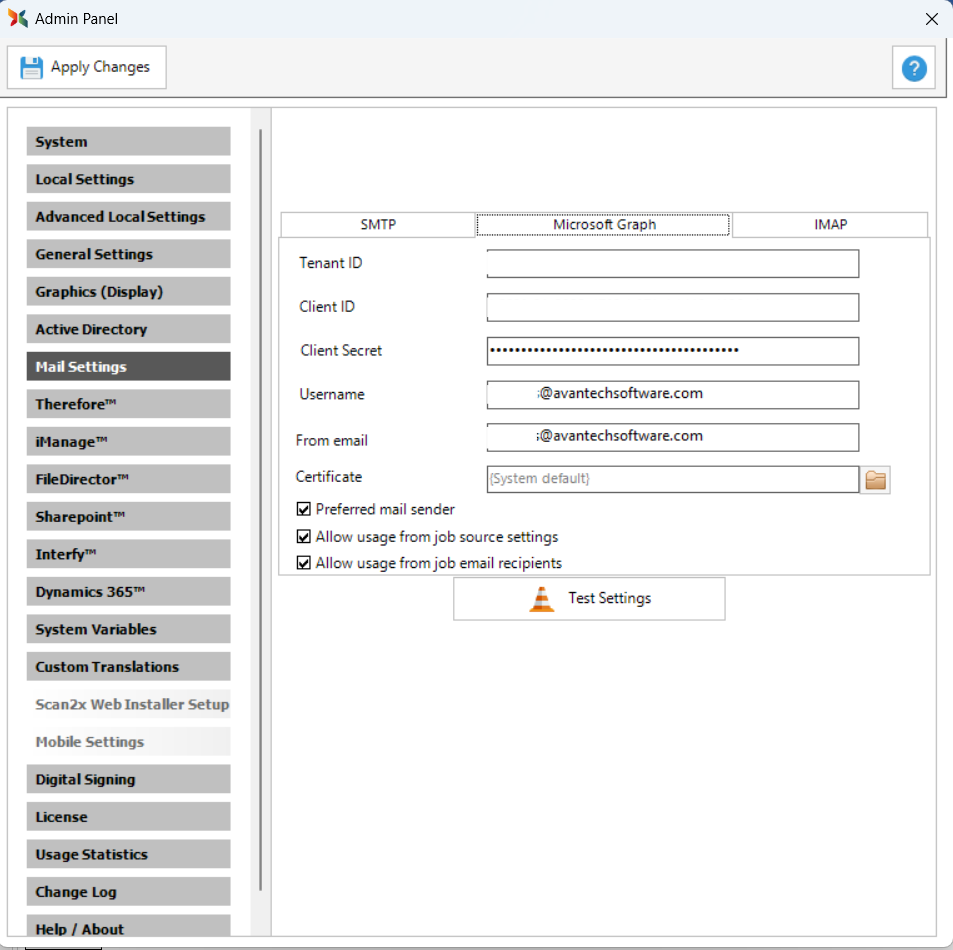
Use the Microsoft Graph tab to send emails from Microsfot 365 accounts through Azure Active Directory authentication.
|
Field
|
Description
|
|
Tenant ID
|
The Microsoft 365 Tenant ID that identifies your organization’s Azure Active Directory.
|
|
Client ID
|
The Application (Client) ID registered in Azure Active Directory for Scan2x.
|
|
Client Secret
|
The secret key created in Azure Active Directory used for authenticating Scan2x with Microsoft Graph.
|
|
Username
|
The Microsoft 365 account username that will be used to send emails.
|
|
From Email
|
The email address that will appear in the “From” field of outgoing messages. This needs to be a valid email address.
|
|
Certificate
|
The certificate used to authenticate Scan2x with Microsoft Graph instead of the Client Secret. To use a certificate, the Client Secret field must be empty, because the certificate replaces it.
|
Options
|
Option
|
Description
|
|
Preferred mail sender
|
Makes Microsoft Graph the default method for sending emails instead of SMTP.
|
|
Allow usage from job source settings
|
Allows the email configuration to be used directly from the job's source settings.
|
|
Allow usage from job email recipients
|
Enables Scan2x to use the recipient addresses defined in the job configuration when sending output emails.
|
IMAP
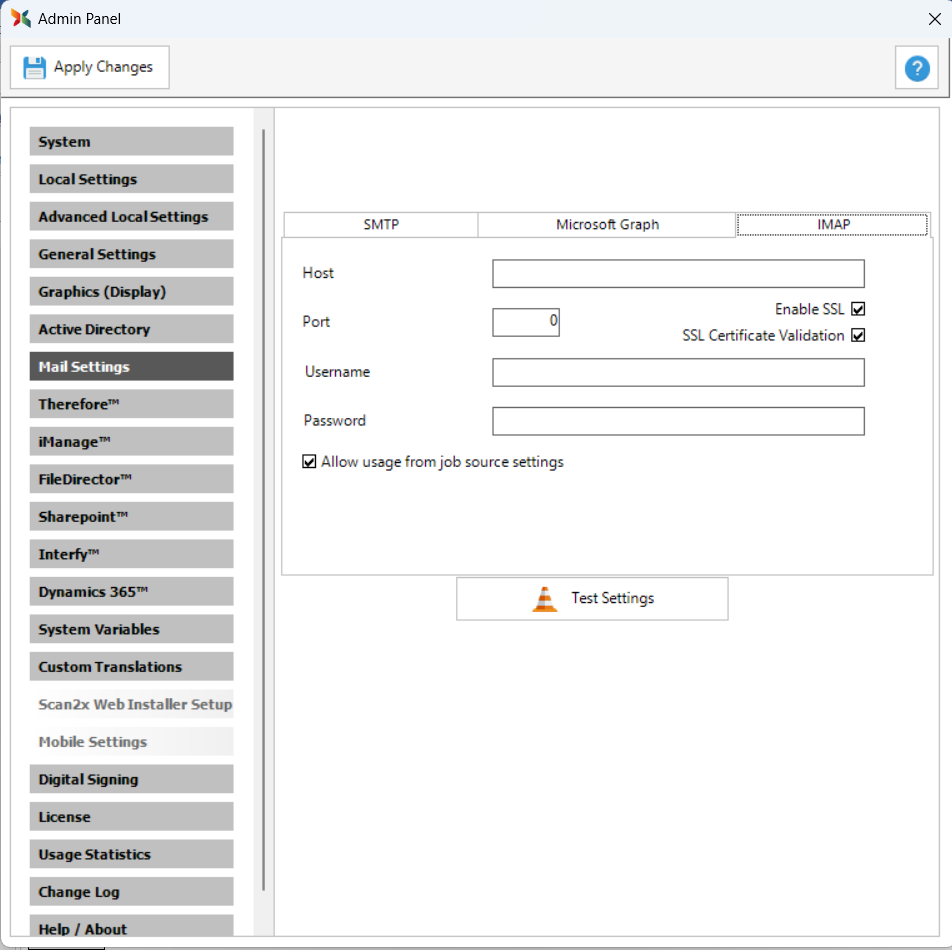
Use the IMAP tab to connect Scan2x to a mailbox using IMAP.
|
Field
|
Description
|
|
Host & Port
|
These IMAP settings for your mailbox (Outlook, Gmail, etc) can be searched online as seen in the image below.
Note: you need the IMAP settings and NOT the SMTP settings.

|
|
Enable SSL
|
SSL stands for Secure Sockets Layer and, in short, it's the standard technology for keeping an internet connection secure and safeguarding any sensitive data that is being sent between two systems.
|
|
Username
|
The username required for Scan2x to log in to the mailbox.
|
|
Password
|
The password required for Scan2x to log in to the mailbox.
|
|
From email
|
The email address that will appear in the “From” field of outgoing messages. This needs to be a valid email address.
|
Options
|
Option
|
Description
|
|
Allow usage from job source settings
|
Allows the email configuration to be used directly from the job's source settings.
|
|

